
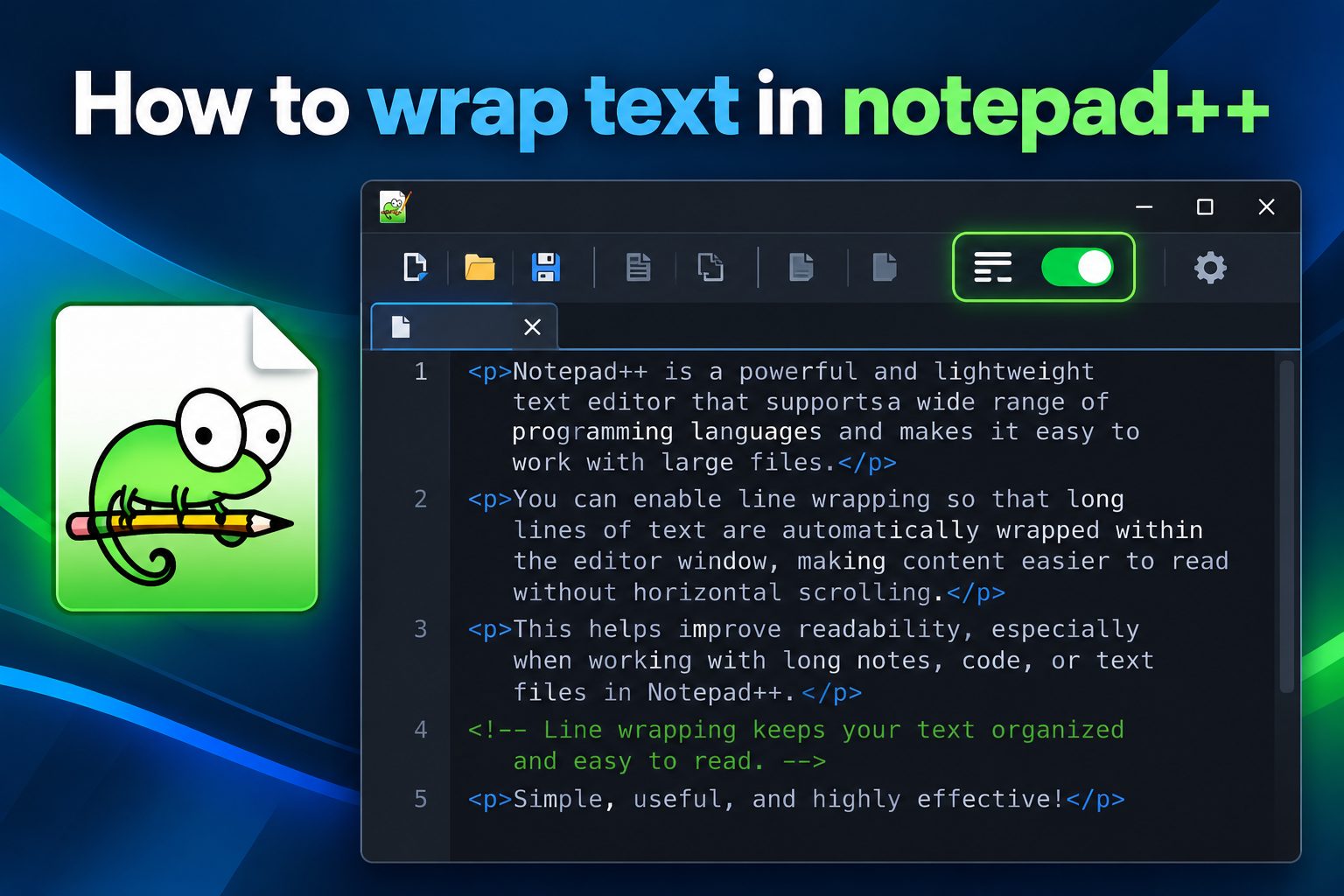
If you want to know how to wrap text in Notepad++, the process is quick and useful for making long lines easier to read. Word wrap changes how text appears in the editor without inserting permanent line breaks into your file.
This feature is especially helpful when working with paragraphs, source code, logs, configuration files, notes, or data containing very long lines. Instead of scrolling horizontally across the window, you can make text fit within the visible editor area.
In this guide, you will learn how to enable and disable word wrap, use the relevant menu option, understand the difference between visual wrapping and real line breaks, troubleshoot common problems, and choose the best settings for different types of files.
Word wrap is a display feature that automatically moves text to the next visible line when it reaches the edge of the Notepad++ editing window. It does not normally change the actual contents of your document. The same continuous line remains stored as one line even though it appears across several rows.
This distinction matters because visual wrapping and inserting a line break are not the same action. Word wrap improves readability while preserving the original text structure. A real line break adds a character to the document and can affect code, formatting, imports, or data processing.
When word wrap is disabled, long lines continue beyond the right side of the editor, requiring horizontal scrolling. This may be suitable for programming or structured data where exact line length matters visually. However, it can make ordinary paragraphs and long messages difficult to review.
When word wrap is enabled, Notepad++ adjusts the display as you resize the window. The wrapped text follows the available width, so you can read more naturally without manually adding breaks. This is convenient when reviewing notes, documentation, copied text, or large blocks of prose.
The setting is generally applied through the View menu and can be switched whenever needed. Because it affects presentation rather than content, you can turn it on for reading and turn it off for precise editing without changing the saved file.
How Do You Turn On Word Wrap?
1. Open Notepad++
Start Notepad++ and open the document you want to read or edit. You can use an existing text file or create a new document. Word wrap works in the editor area, so make sure the file is active before changing the display setting.
2. Select The View Menu
At the top of the Notepad++ window, select the View menu. This menu contains display and navigation options that control how the editor presents your document. It is also where you can find the word wrap command.
3. Choose Word Wrap
In the View menu, select Word Wrap. If the command is currently disabled, clicking it will enable wrapping. Long lines should immediately move onto additional visual rows when they reach the right edge of the editing area.
4. Check The Visual Result
Look at a long paragraph or line after enabling the option. The text should now fit within the visible editor width instead of continuing horizontally. If the document contains only short lines, the change may be subtle because no wrapping is required.
5. Resize The Window
Try making the Notepad++ window narrower or wider. Wrapped text should adjust automatically to the new width. This confirms that word wrap is active and that the editor is changing the display dynamically rather than inserting permanent breaks.
6. Save Only If Content Changed
Turning word wrap on or off does not normally require you to save the document because the text itself has not changed. Save the file only when you have made actual edits. This helps you distinguish display preferences from document modifications.
7. Turn It Off When Needed
To disable wrapping, return to the View menu and select Word Wrap again. The option works like a toggle. Once disabled, long lines will continue across the editor and horizontal scrolling will become available when necessary.
What Does Word Wrap Change?
1. Word wrap changes the way long lines appear on screen, making paragraphs easier to read without changing the underlying text.
2. Wrapped rows are visual lines, not necessarily separate document lines, so line numbers may not increase for every displayed row.
3. The wrapping position depends on the width of the editor window and may change when panels, sidebars, or zoom settings are adjusted.
4. Disabling word wrap can make exact line structure easier to inspect, especially in programming files, logs, and machine-generated data.
5. Word wrap is different from formatting text with inserted line breaks, which permanently changes the document and may affect how another application reads it.
Why Is Word Wrap Useful In Notepad++?
- Easier Reading: Word wrap keeps long paragraphs within the visible editor area, allowing you to read naturally without repeatedly moving across the screen.
- Faster Reviewing: Wrapped text makes it easier to scan copied content, error messages, notes, and documentation because more of each sentence remains visible at once.
- No Permanent Formatting: The feature changes the display rather than adding line breaks, so the original structure of the file remains intact while you read it.
- Better Small-Screen Use: On laptops or narrow windows, wrapping reduces horizontal scrolling and makes long lines more manageable without requiring a larger monitor.
- Flexible Editing: You can switch wrapping on for reading and off for technical inspection, giving you control over how the same file is displayed.
- Useful For Many Files: The feature helps with plain text, notes, copied web content, logs, scripts, configuration files, and other documents containing long lines.
What Mistakes Should You Avoid?
1. Confusing Wrap With Line Breaks
A common mistake is assuming that visually wrapped text contains new paragraph marks. Word wrap only changes how content appears. If another application requires fixed line lengths or separate records, you must intentionally insert real line breaks using an appropriate editing method.
2. Expecting Line Numbers To Increase
Wrapped display rows usually do not receive separate document line numbers. This can confuse beginners who see several rows but only one line number. Remember that line numbering follows actual line-ending characters, not every visual row shown on screen.
3. Leaving Wrap On For Structured Data
Word wrap may make CSV files, JSON documents, logs, or source code harder to inspect when exact line boundaries are important. If visual alignment becomes confusing, turn wrapping off temporarily and use horizontal scrolling to examine the original structure.
4. Editing Without Checking The Display
When a line wraps, the next visible row may look like a new paragraph even though it is part of the same line. Before selecting, deleting, or copying text, check whether the break is visual or actual so you do not make an unintended edit.
5. Searching For A Display Row
Search tools work with the document's real text rather than the temporary visual rows created by wrapping. If a phrase appears across a wrapped display boundary, search for the continuous text instead of treating the boundary as a character.
6. Assuming The Setting Changes The File
Turning word wrap on or off generally does not alter saved content. If you need a document with permanent breaks, use a deliberate formatting or replacement process and review the result carefully before saving over the original.
Learning how to wrap text in Notepad++ is simple: open the View menu, select Word Wrap, and use the same option again whenever you want to disable it. The setting makes long lines easier to read while normally leaving the actual document unchanged.
Word wrap is most useful for paragraphs, notes, copied text, and other content that is difficult to follow when it extends beyond the editor window. For code, logs, and structured data, you may prefer to turn it off when exact line boundaries matter.
The most important point is to distinguish visual wrapping from real line breaks. Once you understand that difference, you can switch the feature confidently, avoid formatting mistakes, and choose the clearest display for each file.
FAQs About Wrapping Text In Notepad++
How do I wrap text in Notepad++?
Open your document in Notepad++, select the View menu, and choose Word Wrap. Long lines will then move onto additional visual rows when they reach the edge of the editor. Select Word Wrap again to turn the feature off.
Does word wrap add line breaks to my file?
No. Word wrap normally changes only the way text is displayed in the editor. It does not insert newline characters into your document. If you need permanent line breaks, you must add or convert them intentionally using an editing operation.
Why are line numbers not shown for wrapped rows?
Wrapped rows are visual extensions of the same document line, so Notepad++ generally assigns one line number to the original line. The display may show several rows, but the file still contains one continuous line until an actual line-ending character appears.
Can word wrap be used with code files?
Yes, but whether it is helpful depends on the code. Wrapping can make long comments easier to read, while disabling it may be better for checking indentation, alignment, delimiters, and exact line structure in source code or configuration files.
Why does wrapped text change when I resize the window?
Notepad++ calculates wrapping from the available editor width. When you resize the window or change side panels, the available space changes, so long lines may wrap at different positions. This affects the display only, not the saved content.
What should I do if Word Wrap seems not to work?
Confirm that the document contains lines long enough to exceed the visible editor width, then check the View menu and make sure Word Wrap is selected. If necessary, widen or narrow the window to make the visual change easier to notice.