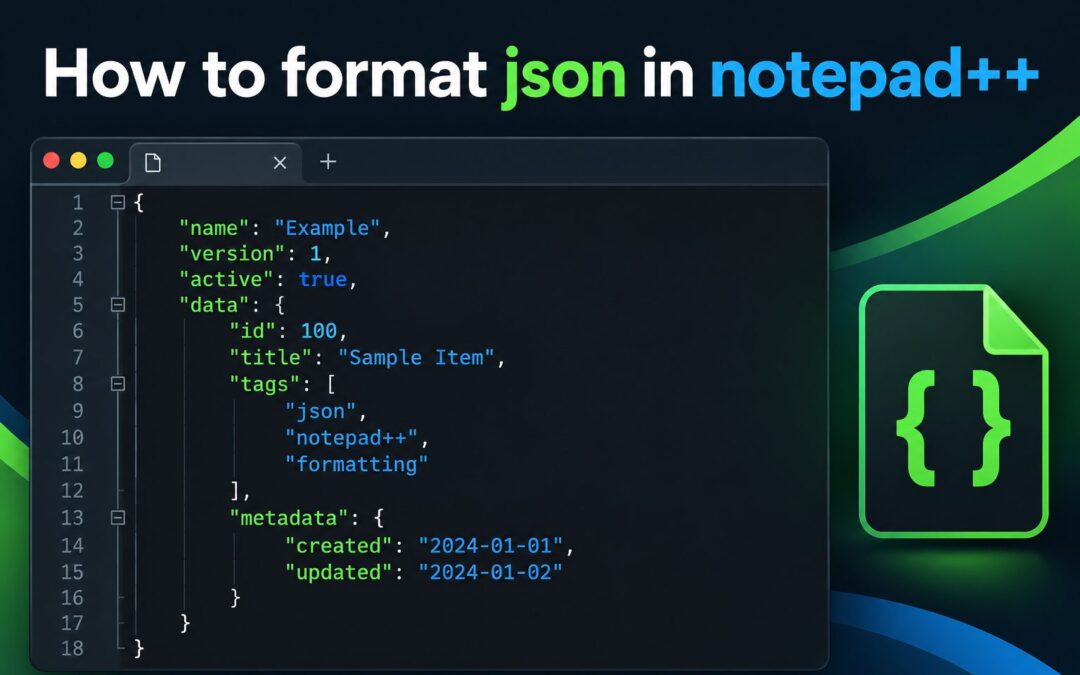
Formatting JSON in Notepad++ makes difficult-to-read data much easier to inspect, edit, and troubleshoot. When JSON appears as one long line, it can be hard to find missing commas, misplaced brackets, incorrect quotation marks, or deeply nested objects. Notepad++ can turn that compressed text into a clean, indented structure with only a few steps.
This guide explains how to format JSON in Notepad++ using practical methods that work for beginners and experienced developers. You will learn how to install a suitable JSON formatting plugin, format and validate a document, fix common errors, adjust indentation, and safely work with large JSON files.
You will also see when Notepad++ is a good choice, when another tool may be better, and how to avoid changing the meaning of your data while improving its appearance. The goal is not only to make JSON look cleaner, but also to make it easier to understand and maintain.
Whether you are reviewing an API response, editing a configuration file, checking exported data, or debugging an application, these steps will help you work with JSON more efficiently in Notepad++.
JSON, short for JavaScript Object Notation, is a text-based format used to store and exchange structured information. It uses objects, arrays, names, values, strings, numbers, Boolean values, and null. JSON is popular because it is readable by people and easy for software to process.
A JSON document may be valid even when it is displayed as one continuous line. Formatting does not change the data itself when it is done correctly. Instead, it adds line breaks, spaces, and indentation so that the relationship between parent objects, child objects, and arrays is visible.
Readable formatting is especially useful when a file contains multiple levels of nesting. For example, a customer object may contain an address object, an order list, and several product objects. Without indentation, it becomes difficult to see where one structure begins and another ends.
Notepad++ is a lightweight editor with powerful plugins, syntax highlighting, search features, and support for large text files. It does not always include a complete JSON formatter in a default installation, so formatting normally requires a compatible plugin or an external formatting method.
Before formatting important data, create a backup or use Save As to make a copy. A formatter can reveal errors, but it may not preserve every unusual spacing choice or line-ending preference. Keeping the original file makes it easy to compare changes and recover if necessary.
How Do You Format JSON In Notepad++
1. Install A JSON Formatting Plugin
Open Notepad++ and use the Plugins menu to access the plugin manager. Search for a trusted JSON-related formatter, such as a plugin that provides JSON viewer, JSON tools, or pretty-print functionality. Choose a maintained option that is compatible with your Notepad++ version, then install it and restart the editor if requested.
2. Open The JSON File
Open the JSON document in Notepad++ using the File menu or by dragging the file into the editor window. If the content is displayed as one long line, do not worry; that is common for minified JSON. Confirm that the file contains the expected data before making any formatting changes.
3. Select The JSON Content
Some formatting plugins work on the entire document, while others format only the selected text. To avoid uncertainty, select the JSON content with the keyboard shortcut for selecting everything. If the file contains comments, notes, or unrelated text, select only the JSON portion that you want the formatter to process.
4. Run The Pretty Print Command
Open the plugin menu and choose the command commonly named Pretty Print, Format JSON, or a similar option. The plugin should insert line breaks and indentation around objects and arrays. If the command does not run, the content may contain a syntax error, or the plugin may require a different selection or document mode.
5. Review The New Indentation
After formatting, examine the structure from the outside inward. Check that opening and closing braces line up visually, array items are separated clearly, and nested values are indented consistently. Good formatting should make parent-child relationships obvious without altering property names, values, or the order of entries.
6. Save A Formatted Copy
Use Save As when you want to preserve the original minified file. Give the formatted version a clear filename and retain the JSON extension. If the file is used by an application, confirm that the formatter did not add unwanted text, change the character encoding, or remove required content.
7. Validate The Result
Formatting and validation are related but different tasks. A formatter may refuse to process invalid JSON, while a validator identifies the exact problem more clearly. Validate the finished document with your plugin or another trusted JSON checker, especially before uploading it, importing it, or using it in production.
What Makes JSON Formatting Useful
1. Readable nesting makes it easier to see how objects and arrays relate to one another. Indentation shows which properties belong to a parent object, while separate lines make long values and collections easier to scan.
2. Error detection becomes faster because punctuation is no longer hidden inside a long line. Missing commas, extra commas, unmatched braces, and incorrectly closed arrays stand out more clearly after the content is formatted.
3. Editing becomes safer because you can focus on one property or array item at a time. This reduces the chance of accidentally changing a nearby value or deleting a structural character during manual editing.
4. Team collaboration improves when developers share consistently formatted files. Reviewers can compare changes more easily, identify meaningful edits, and avoid wasting time interpreting inconsistent spacing or compressed output.
5. Debugging API responses is more practical when each field appears on its own line. You can search for a property, inspect its surrounding object, and compare several responses without trying to parse an unbroken block of text.
Which JSON Formatting Features Matter Most
- Pretty Printing: Pretty printing adds line breaks and indentation to compact JSON, creating a structure that is much easier to read and edit.
- Syntax Highlighting: Syntax highlighting separates property names, strings, numbers, punctuation, and Boolean values visually, helping you notice mistakes quickly.
- Validation: A validation feature checks whether the document follows JSON rules and can often identify the location or type of a syntax problem.
- Indentation Control: The ability to use spaces or tabs and choose an indentation width lets you match the formatting style used by your project or team.
- Search And Navigation: Notepad++ search tools help you locate property names, repeated values, identifiers, and nested content inside large formatted documents.
- Encoding Support: Correct encoding support protects non-English characters and special symbols from becoming corrupted when a formatted JSON file is saved.
- Backup-Friendly Editing: Save As, duplicate tabs, and versioned filenames make it easier to experiment with formatting while preserving the original source data.
What JSON Formatting Mistakes Should You Avoid
1. Formatting Invalid JSON
A formatter cannot reliably organize content that is not valid JSON. Common causes include missing commas, single quotes around strings, unquoted property names, trailing commas, and comments inserted into the document. Correct the syntax first, then run the formatting command again.
2. Confusing JSON With JavaScript
JSON resembles JavaScript but follows stricter rules. Standard JSON requires double quotation marks for property names and string values, does not allow functions, and normally does not allow comments. Treating a JavaScript object as JSON can cause validation or formatting failures.
3. Formatting Without A Backup
Even when a formatter is safe, saving directly over the original file can create unnecessary risk. The result may use a different line-ending style, encoding, or indentation pattern. Preserve the source file until you have confirmed that the formatted copy works as intended.
4. Editing Values While Checking Layout
Formatting is meant to improve presentation, not automatically correct the meaning of the data. Avoid changing values, property names, or array order while reviewing indentation. Separate layout work from content edits so that any later problem is easier to trace.
5. Ignoring Character Encoding
JSON may contain accented letters, Asian characters, currency symbols, or emoji. Saving with an incompatible encoding can replace those characters or make them unreadable. Check the current encoding before editing and use a suitable Unicode option when the document requires it.
6. Using A Plugin You Do Not Trust
Plugins add useful capabilities, but they should come from a reliable source and be kept reasonably current. Review the plugin name, publisher, compatibility, and available documentation before installation. Avoid installing several overlapping formatters when one dependable tool is sufficient.
7. Treating Formatting As Validation
A document can look organized and still contain a logical problem, such as a wrong identifier, missing required property, or unexpected data type. Formatting improves readability, whereas validation checks syntax. Business rules and application requirements may require additional testing.
Formatting JSON in Notepad++ is a simple way to make structured data easier to read, edit, and troubleshoot. The general process is to install a suitable formatting plugin, open or select the JSON content, run the pretty-print command, review the indentation, and validate the result.
The most important habits are to keep a backup, protect the original encoding, distinguish formatting from validation, and check the document before using it in another application. These precautions reduce the chance of losing data or introducing subtle errors.
For occasional JSON editing, Notepad++ provides a fast and convenient workflow. Once you become familiar with plugins, indentation, syntax rules, and validation, even large or minified JSON files become much easier to manage.
FAQs About Formatting JSON In Notepad++
1. Can Notepad++ format JSON without a plugin?
Notepad++ can display JSON as text and provide syntax highlighting, but a default installation may not include a dedicated pretty-print command. A compatible JSON plugin is usually the easiest option. You can also format the content with another trusted tool and then reopen the result in Notepad++.
2. Why does the JSON formatter fail in Notepad++?
The most common reason is invalid JSON. Check for missing commas, unmatched braces, single quotes, trailing commas, unquoted names, or comments. Also confirm that you selected the correct content and that the installed plugin supports your version of Notepad++.
3. Does formatting JSON change the data?
Proper formatting changes whitespace, such as line breaks, spaces, and indentation, but it should not change the actual values or structure. However, saving can affect encoding or line endings, and manual editing can change content. Always compare the formatted copy with the original when the data is important.
4. How can I format a large JSON file safely?
Create a backup before formatting and use Save As for the result. Large files may take longer to process, so close unnecessary documents and avoid running several plugins at once. If the file is extremely large, consider a specialized JSON tool designed for high-volume data.
5. Can I choose spaces instead of tabs for JSON indentation?
The available options depend on the plugin and Notepad++ settings. Many formatters let you choose an indentation width, while Notepad++ itself can convert tabs and spaces. Use the style required by your project, and apply it consistently throughout the document.
6. Is formatted JSON better than minified JSON?
Formatted JSON is better for reading, reviewing, and manual editing because its structure is visible. Minified JSON is smaller and can be useful for transmission or storage. Keep a readable development copy, then minify only when a specific system or workflow benefits from reduced whitespace.